Subscription Management
You can manage your subscription details in different locations.
Admin Portal
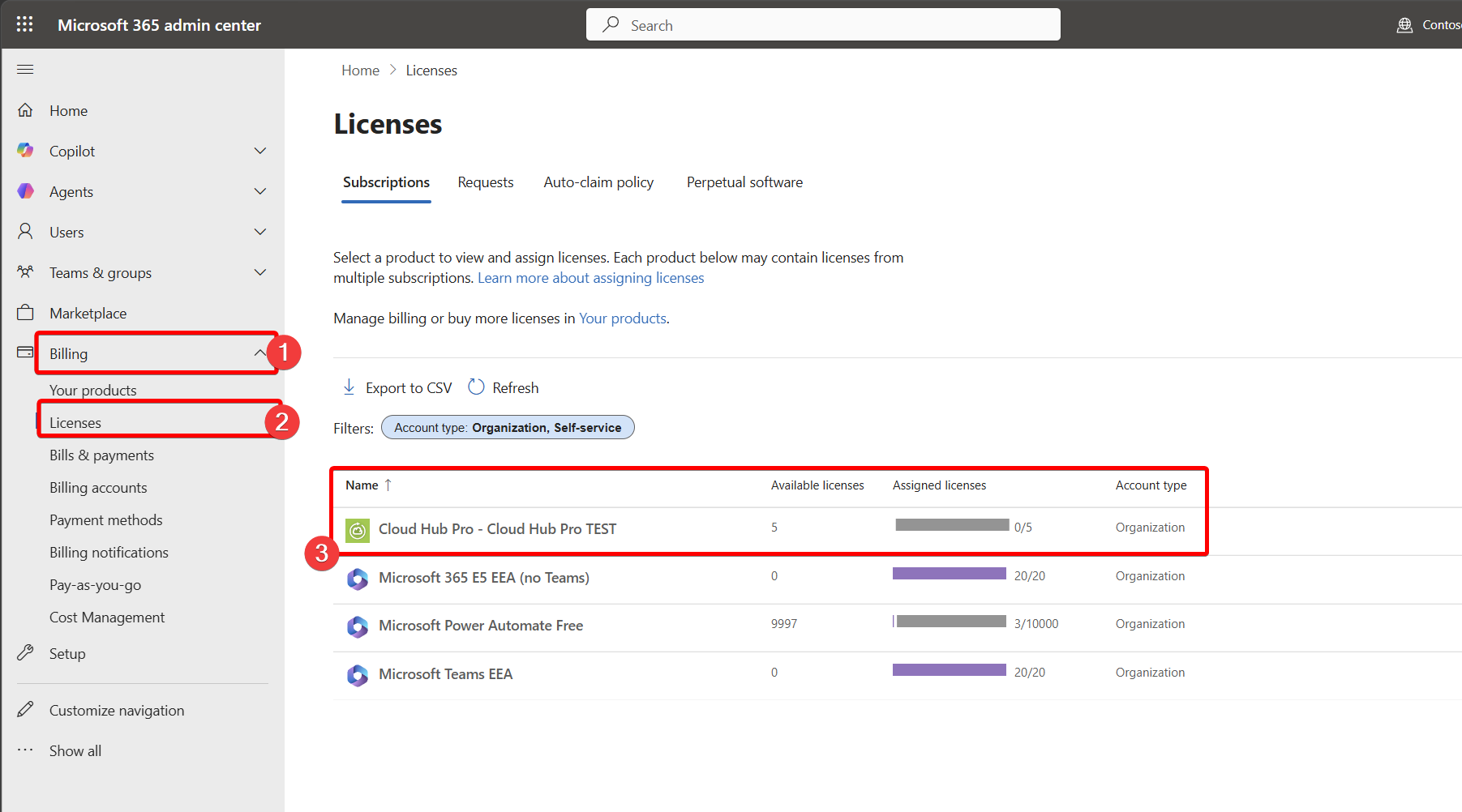
In the Microsoft Admin Portal (https://admin.microsoft.com) below the Billing | Licenses - you can see the Cloud Hub Pro Subscription. The number of licenses available and assigned, and in the details of the subscription assign licenses to your users.
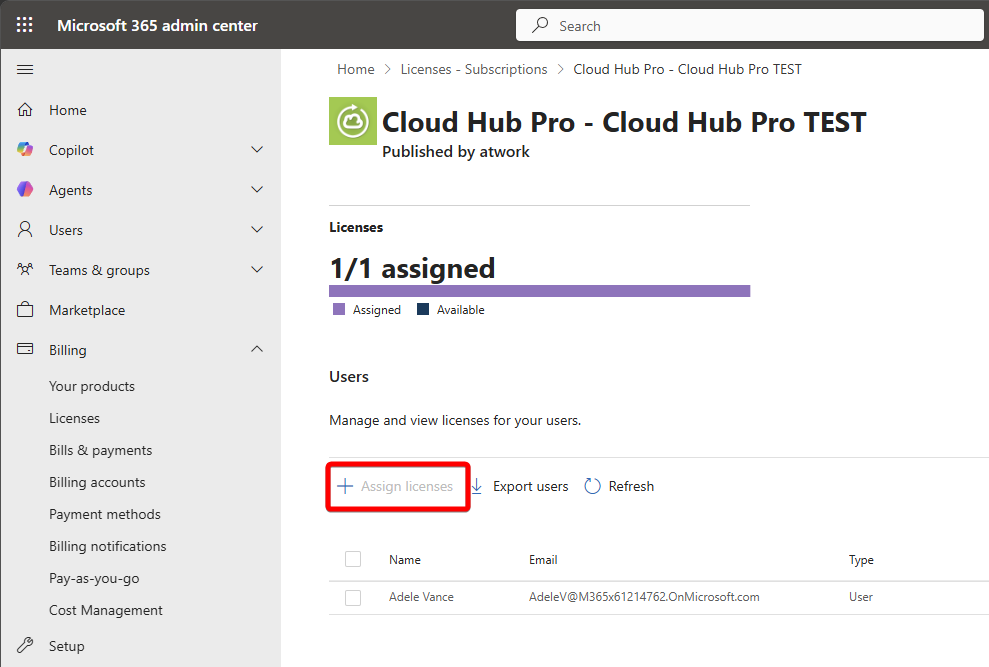
User Assignment of licenses can be done in the details of the subscription.
Microsoft Teams Admin Portal
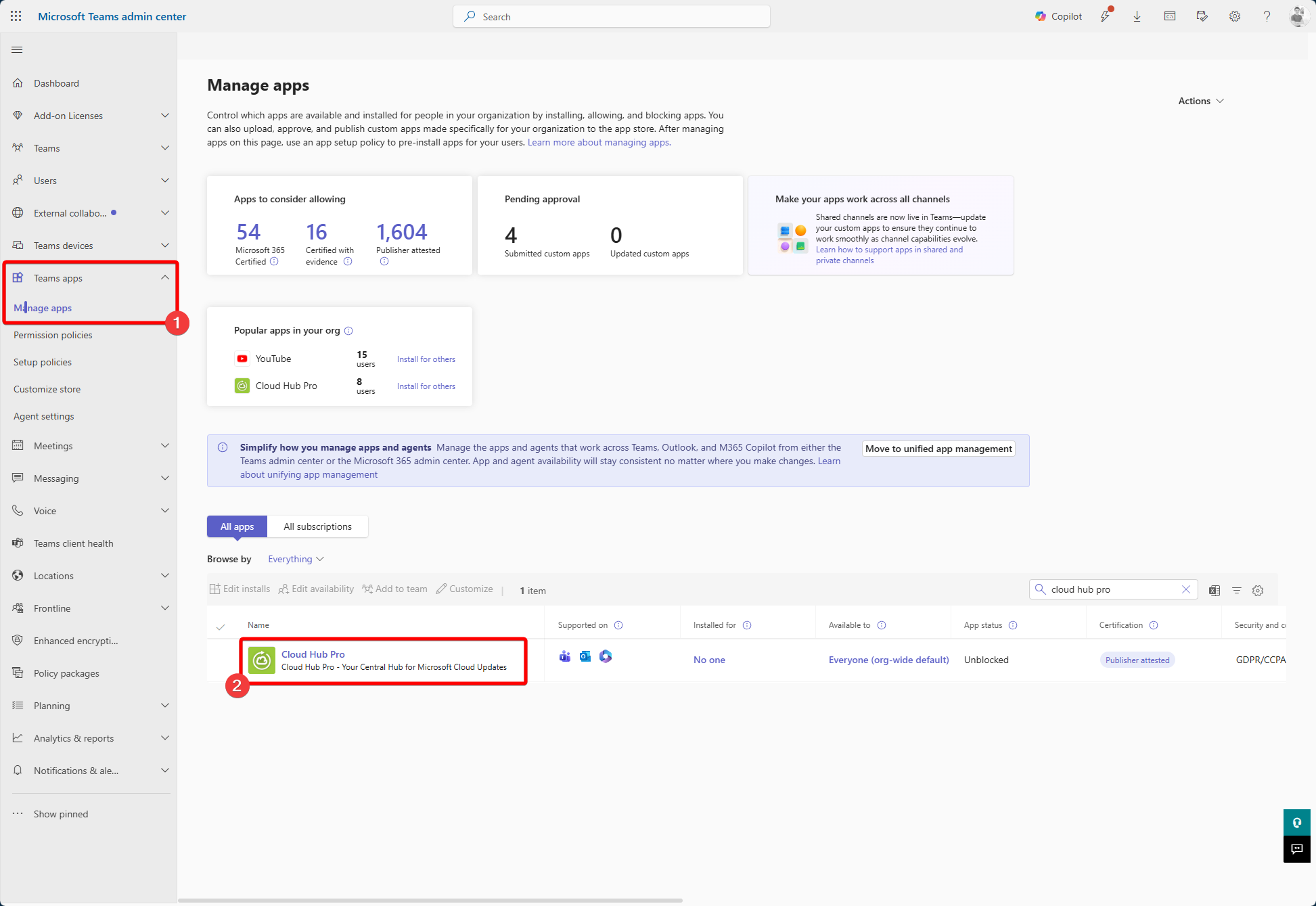
Find the application in the Teams Admin Portal under Teams Apps and Manage Apps.
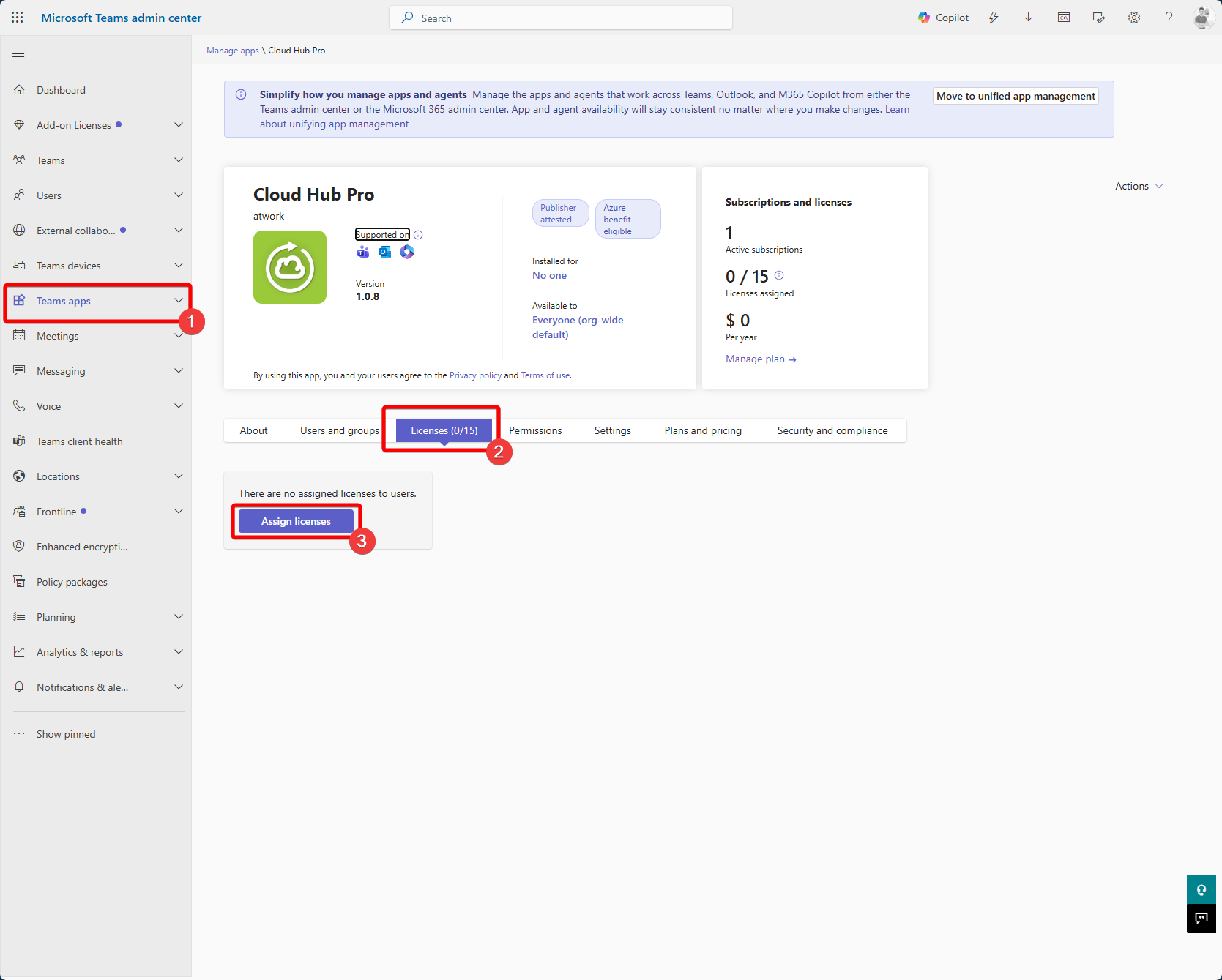
Find the License section and select Assign License
Select the Users to assign the license.
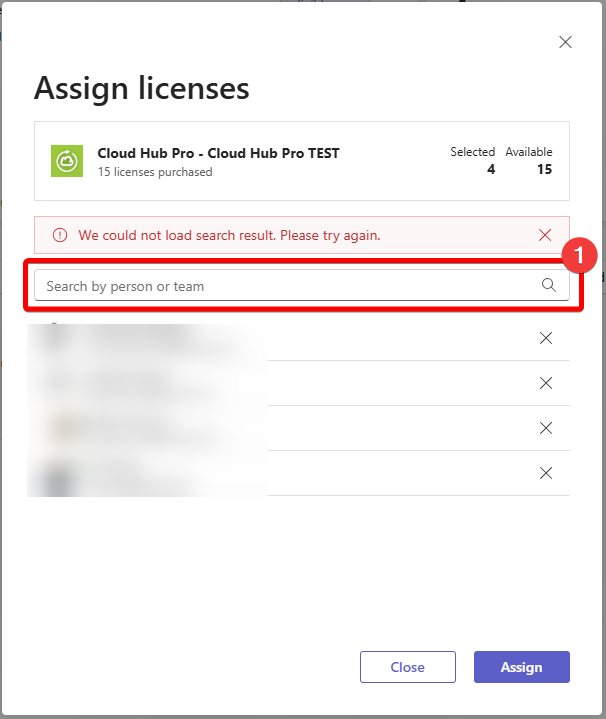
Microsoft Teams Client
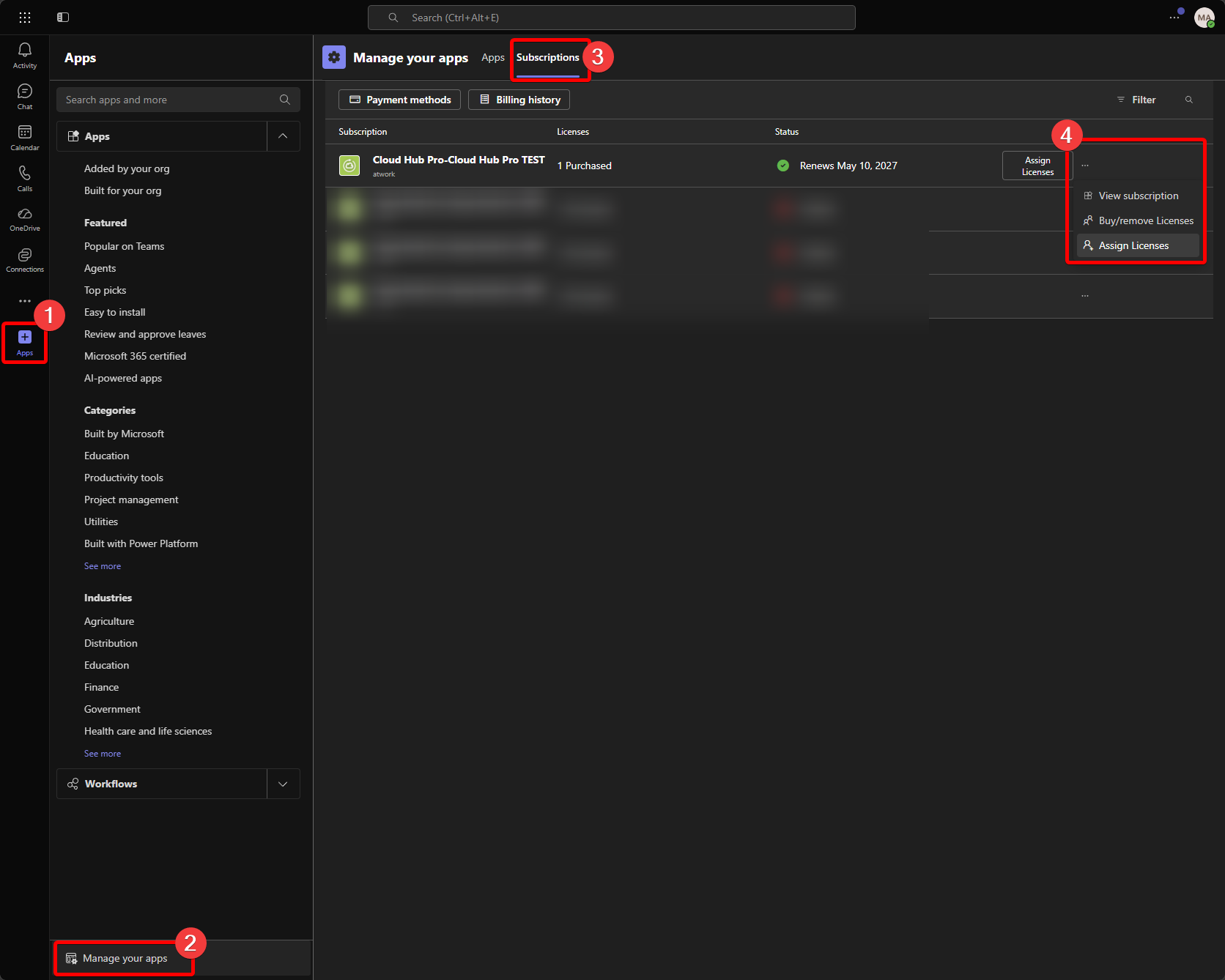
Within the Teams Client under the Apps section, the Manage your Apps Menu at the bottom leads to the Subscription management. Within that section you can Assign Licenses, Add or Remove Licenses
Within the Assign Licenses Menu the list of users with an existing license can be viewed, also assignment and unassignment of licenses is possible.
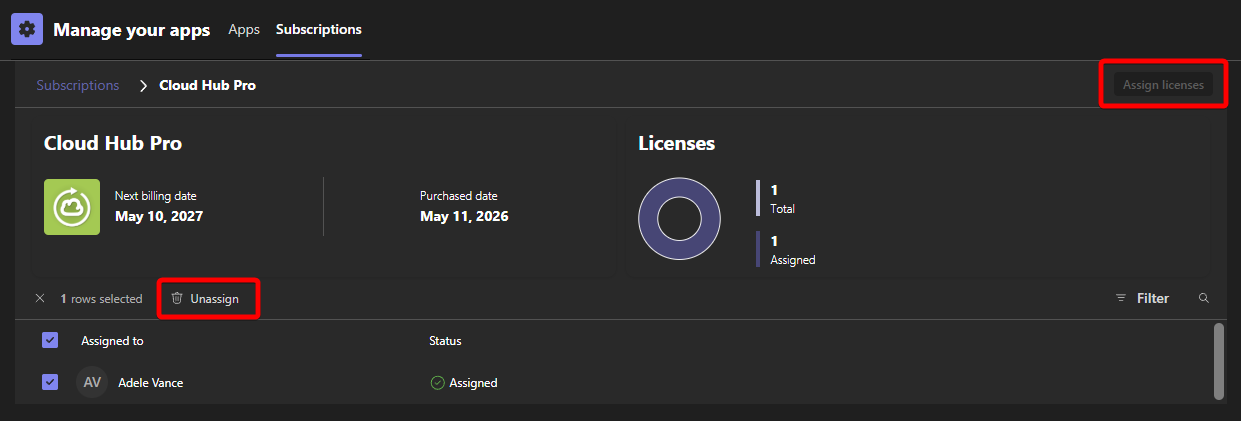
All other options like buy new licenses are a redirection to the Admin Portal.